- L(ai)tte
- Posts
- Canva
Canva
Streamlining Graphic Design for Small Businesses
With the growing release of AI tools daily, I find it can be overwhelming knowing where to start.
One of the best ways is to utilise platforms we already use and see if and how AI has been integrated into the platform, like Canva.
Now you can get carried away with all the AI apps available in Canva to elevate your design or streamline your process, so I have focused on the main elements you would or could use day-to-day.
Spotlight
We business owners wear many hats, including marketer, so we look for graphic design solutions that make this task easier and quicker. Enter Canva.
Canva makes it easier to enhance creativity, maintain brand consistency, and reduce repetitive tasks - leaving space to grow your business.
This is now achieved through their partnership with AI companies.
In this newsletter, we'll look at how utilising Canva and AI can:
Save valuable time
Unleash your creativity
Generative AI is now an essential part of the business toolkit, enhancing team creativity.
80% agree that AI-powered tools reduce repetitive tasks, freeing you to focus on higher-level strategy and creative thinking that adds true long-term value.
Canva AI Toolbox
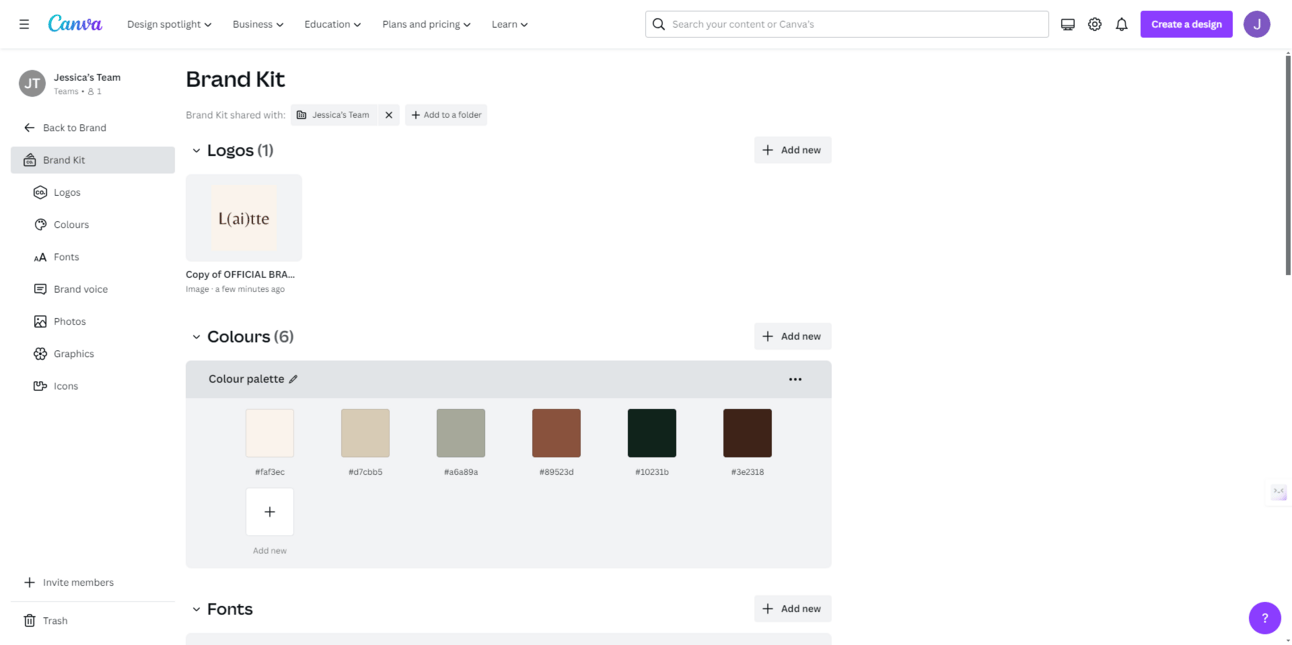
Before getting started, ensure consistency with your brand by utilising Canva's brand hub - it uses AI to help teams maintain brand consistency, allowing admins to set approved fonts and colours.
To utilise some of these tools you will need to sign up for the Pro plan, which you can trial for free for 30 days.
Price: Free Plan, Pro (free 30 day trial) $20 (AUD) per month and Canva Teams $13.50 (AUD)
Magic Studio
Access Magic Studio from the main homepage/dashboard, on the left-hand side menu. Here, you can learn more and access all the AI tools.
Magic Design: Enter a prompt on the homepage to create a graphic. Further streamline the process by choosing your brand and any images you want attached to the graphic.

Magic Design for Presentations: Enter a prompt to create a personalised and on-brand presentation.

Magic Write: Hover over any text box and choose "Magic Write" to improve or edit your writing.

Text-to-Image & Text-to-Video: Easily generate images or videos for your design by entering a prompt.

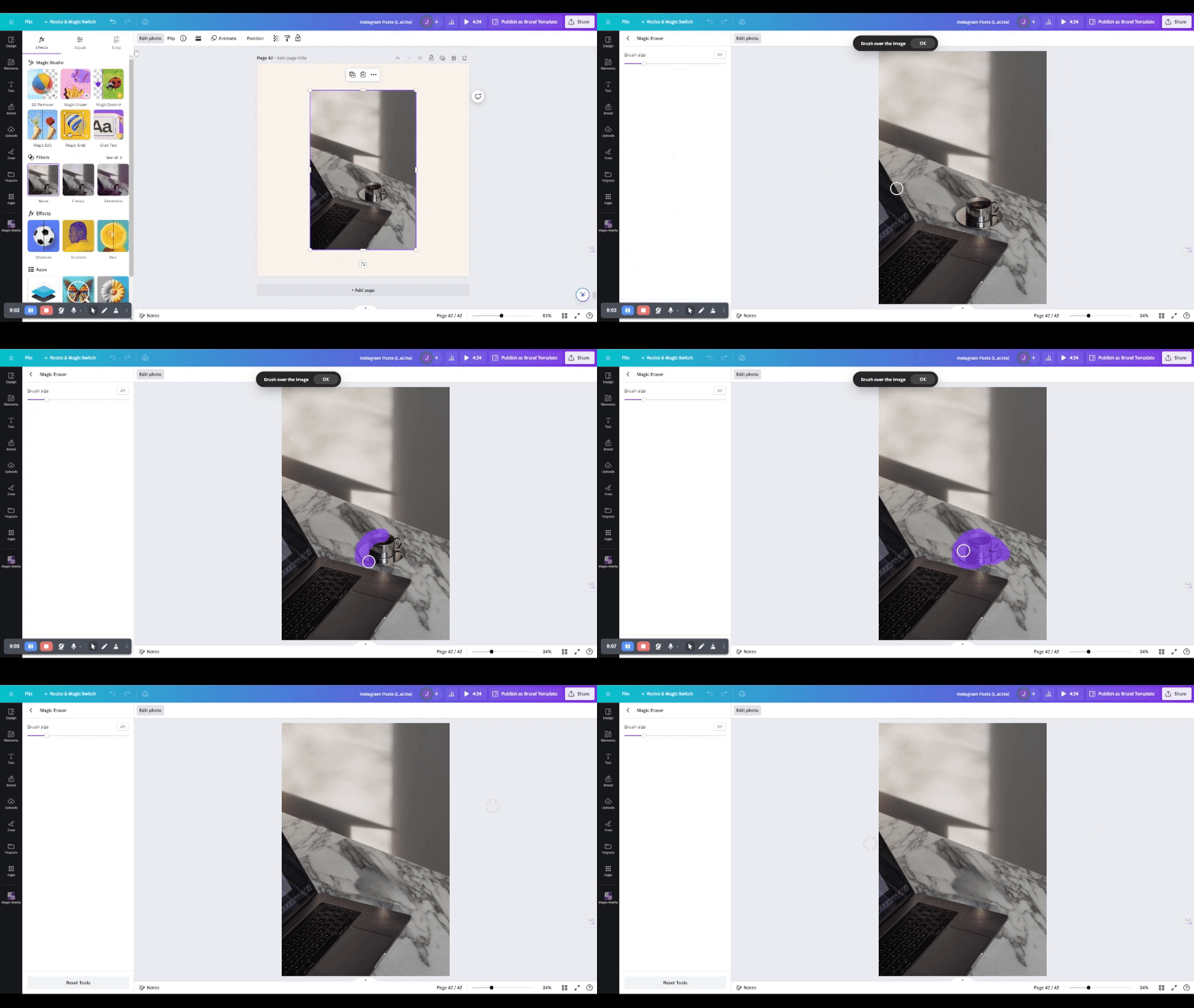
Editing Images
All these design options can be found when you click on the image and in the top-left-hand corner click “edit photo”
Magic Edit

Magic Expand

Background Remover

Magic Eraser
Prompts
Prompt to help create social media post ideas that relate to your ideal client/target audience
Act as a [insert role] and tell me 20 fears, problems and desires of [my audience] and their experience with [what they are trying to achieve]. Structure the answer in a table. BEFORE giving me a response, ask me any list of questions that I need to answer to improve the output. The aim is to help me [what I do] create content ideas for [my audience].
— wait for output —
Using the information from the table can you provide me with 15 Instagram post ideas, 5 targeting their fears, 5 targeting their problems, 5 targeting their desires.
From here you can start creating these posts on Canva.
Reply