- L(ai)tte
- Posts
- Gemini
Gemini
We're entering our Gemini Era

Spotlight
Implementing AI doesn't necessarily require a game-changing structural change to your processes.
While AI has that capability, it can also be implemented in small but impactful ways, such as generating attention-grabbing hooks, outlining blog posts twice as quickly, or drafting emails in a professional, composed tone.
Which is why this week, we're focusing on Google's Gemini and how it works within Google products to save time and streamline your workflow in small yet impactful ways.
Gemini AI Toolbox
Gemini is Google’s GPT, like ChatGPT is to OpenAI, CoPilot is to Microsoft and Claude is to Anthropic.
Google has integrated Gemini into its suite of products enhancing the functionality of individual Google apps while streamlining your workflow.
These Gemini-powered features are available exclusively for Gemini Advanced users.
Gemini GPT Browser
Google has made it incredibly easy to access the Gemini GPT platform directly from your address bar. Simply type "@gemini", click "Chat With Gemini", enter your prompt, and it will launch the Gemini GPT browser.
Gemini offers a free version as well as an advanced version with a free trial, followed by a subscription fee of $32 AUD/$20 USD per month.
Within the GPT browser you can access some of your workspace apps (once you give permission), including: Google flights, Hotels, Maps, Youtube, Gmail, Docs and Drive. Allowing you to search and access information from those apps within the GPT.
For example, you can use commands like:
"@google flights - remind me of my departure time for my flight to London"
"@Gmail - find me the email thread with the subject [insert subject]"

Gmail
Here's how you’d use it:
Craft a draft email utilising the “help me write” prompt. Add your prompt and it will deliver a response that can be inserted into your email.
Refine your email draft with the option to; shorten, elaborate or formalise.

Credit: Google
Google Docs
Here's how you’d use it:
Create content by utilising the “help me write'“ prompt.
Refine the text via clicking on the “A + tick” sign which proofreads your content (possibly taking the place of Grammarly)
Highlight written content and click on the blue pencil icon that appears on the side of the page to further refine the content

Credit: Google
Google Sheets
Here's how you’d use it:
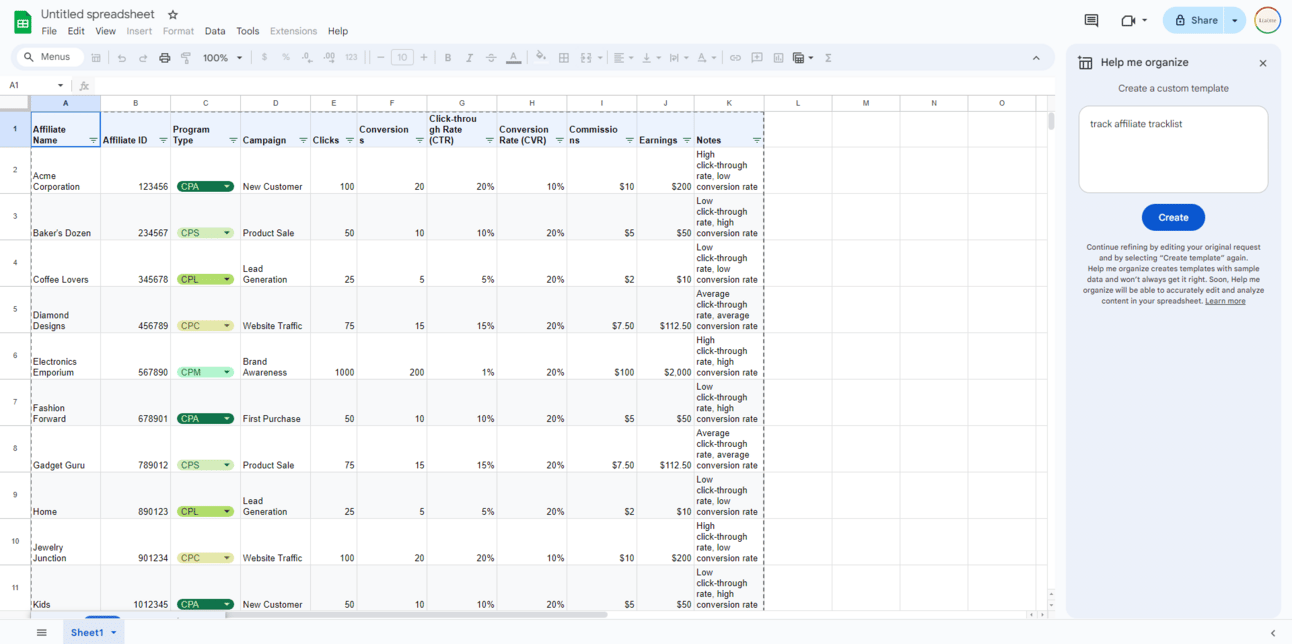
Create tables with content by utilising the “help me organise button”, which is the table icon, directly under the menu options; file, edit and view.
I found this very fickle, as I was trying to create a table to track my affiliate links; the only way I got it to work was by pasting this prompt: "track affiliate tracklist".
Google Meet
Here's how you’d use it:
Create custom backgrounds by heading to the bottom right of your self view, click on the 3 star icon and generate your background via a prompt
Activate studio look to improve audio and visuals, do this in the green room navigate to the “effects” panel and customise your options

Credit: Google
Google Slides
Here's how you’d use it:
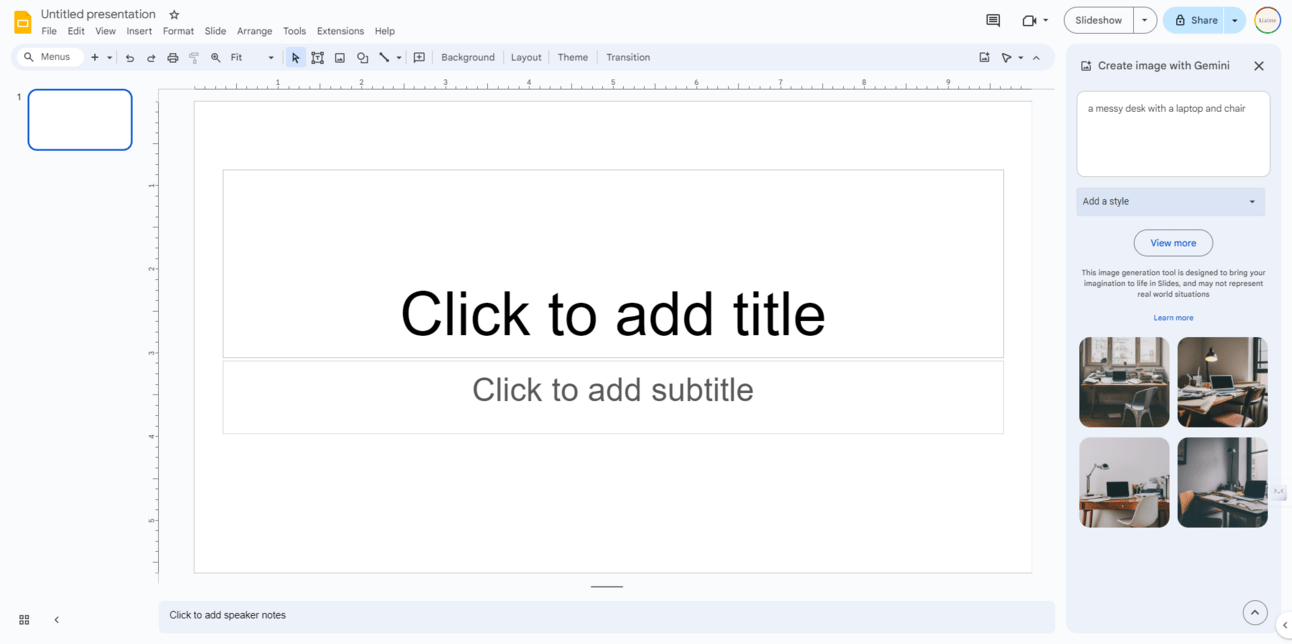
Create custom AI generate images using prompts, it then allows you to edit the style of image which includes background, vector art, sketch etc
Remove the background of images by right clicking on an image and removing the background (this would replace the need for background removal on Canva).
Features coming soon
Will be available next month for all Gemini for Workspace customers and Google One AI premium subscribers on desktop and mobile.
There will be a new side panel experience to Gmail, docs, sheets etc. You will be able to chat with Gemini to summarise, analyse and generate content utilising insights from emails and documents (without having to leave the app you’re in).
Resources
Free Gemini for Google Workspace - Access Course
Google I/O 2024 in under 10 minutes - Access Video
Reply